Payments & terminal
Connect Stripe, take deposits online and tap-to-pay in person with server-driven card terminals — partial and split payments included.
1. Connect Stripe
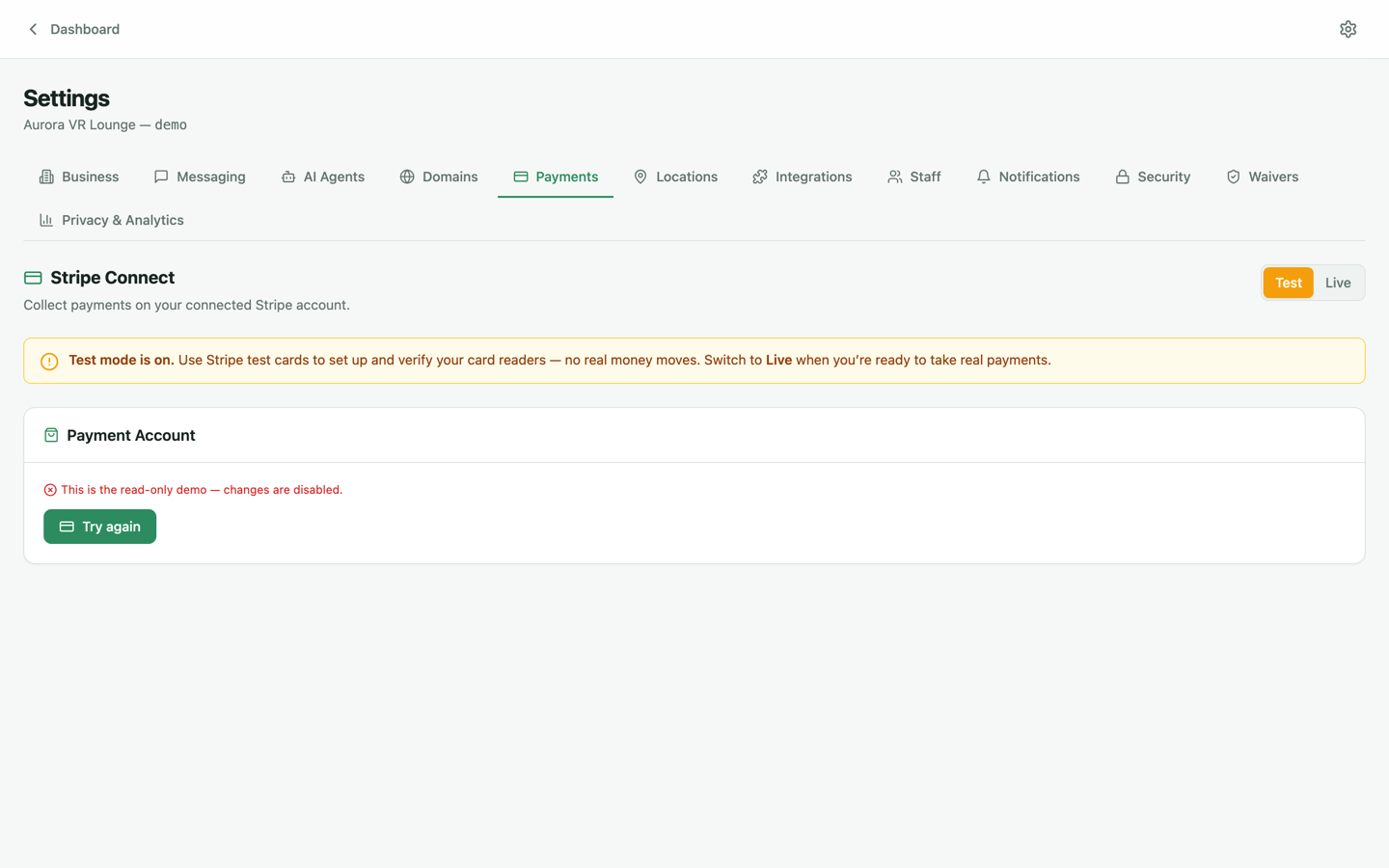
Open Settings → Payments and click connect. You'll be walked through Stripe's onboarding (or asked to link an existing Stripe account); money settles directly into your Stripe account — Revyn Engine never holds your funds. A Test / Live switch lets you verify everything end-to-end with Stripe test cards before real money moves.
2. Choose how bookings are paid
Once Stripe is live you decide what happens at booking time: full payment up front, a deposit with the balance due at the venue, or pay-on-arrival. Partial and split payments are first-class — a group can split the bill online, and whatever's left is visible at check-in so the front desk can settle it in seconds.
3. Add an in-person card terminal
For tap-to-pay at the desk, Revyn Engine drives Stripe Terminal readers server-side — the reader is controlled by the platform, so there's no phone app to babysit.
- Order a Stripe Terminal reader (e.g. the WisePOS E) from the Stripe dashboard or through us.
- On your kiosk or any tablet, open the terminal Setup wizard — it's five taps and a PIN to pair the reader to your venue.
- Take a test payment in Test mode, then flip to Live.
Canadian venues: Interac is supported for in-person payments — you'll need a Canadian Stripe account for CAD card-present processing.
Refunds & receipts
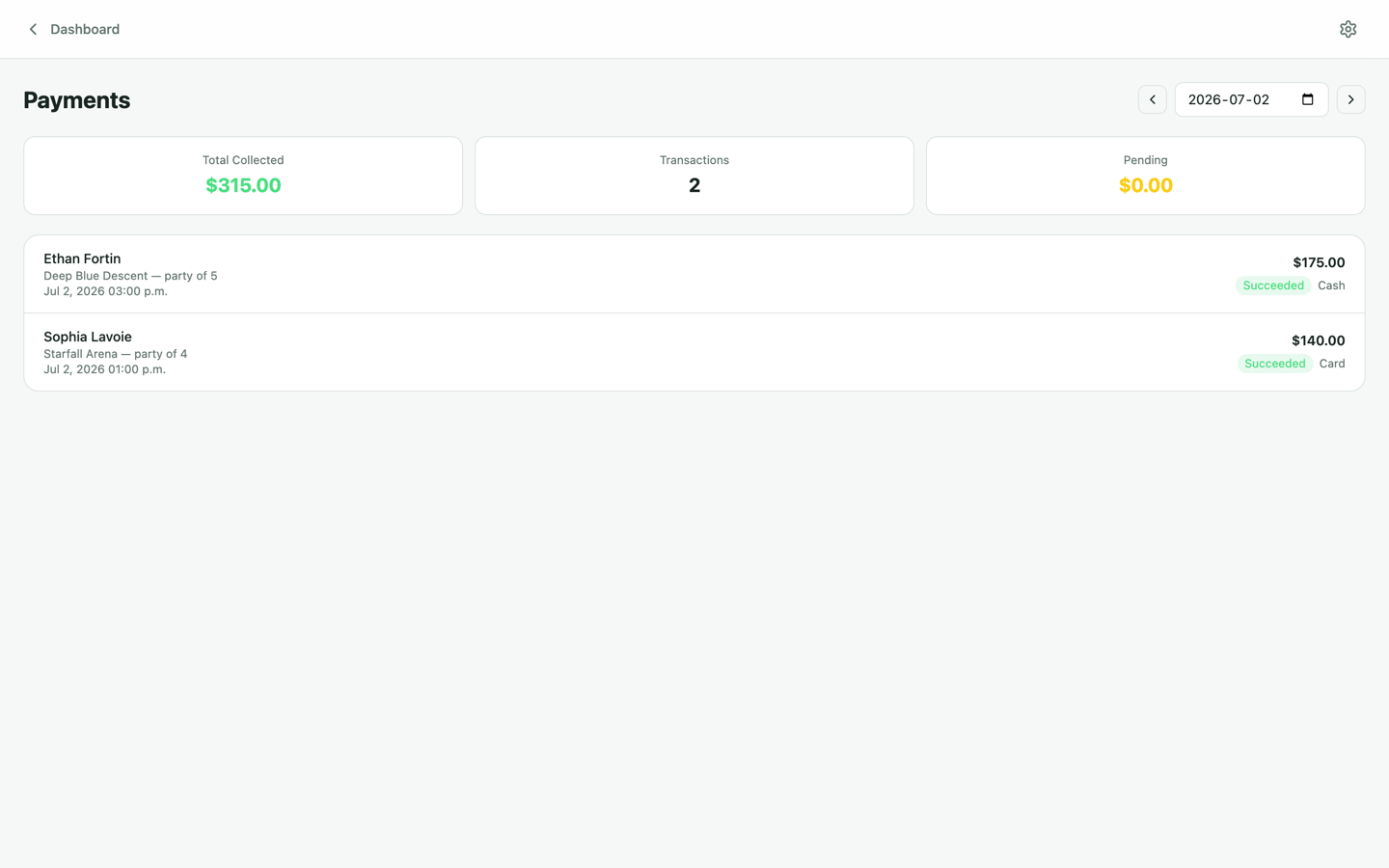
Refunds are issued from the booking or the Payments page and flow back through Stripe automatically. Receipts go out by email, and every payment is tied to the booking and the customer record, so revenue reporting in Analytics is accurate without any reconciliation work.