Kiosk & waivers
Turn any tablet into a self-serve check-in kiosk with digital waivers — adult and minor flows routed automatically, no clipboards, no duplicates.
How check-in works
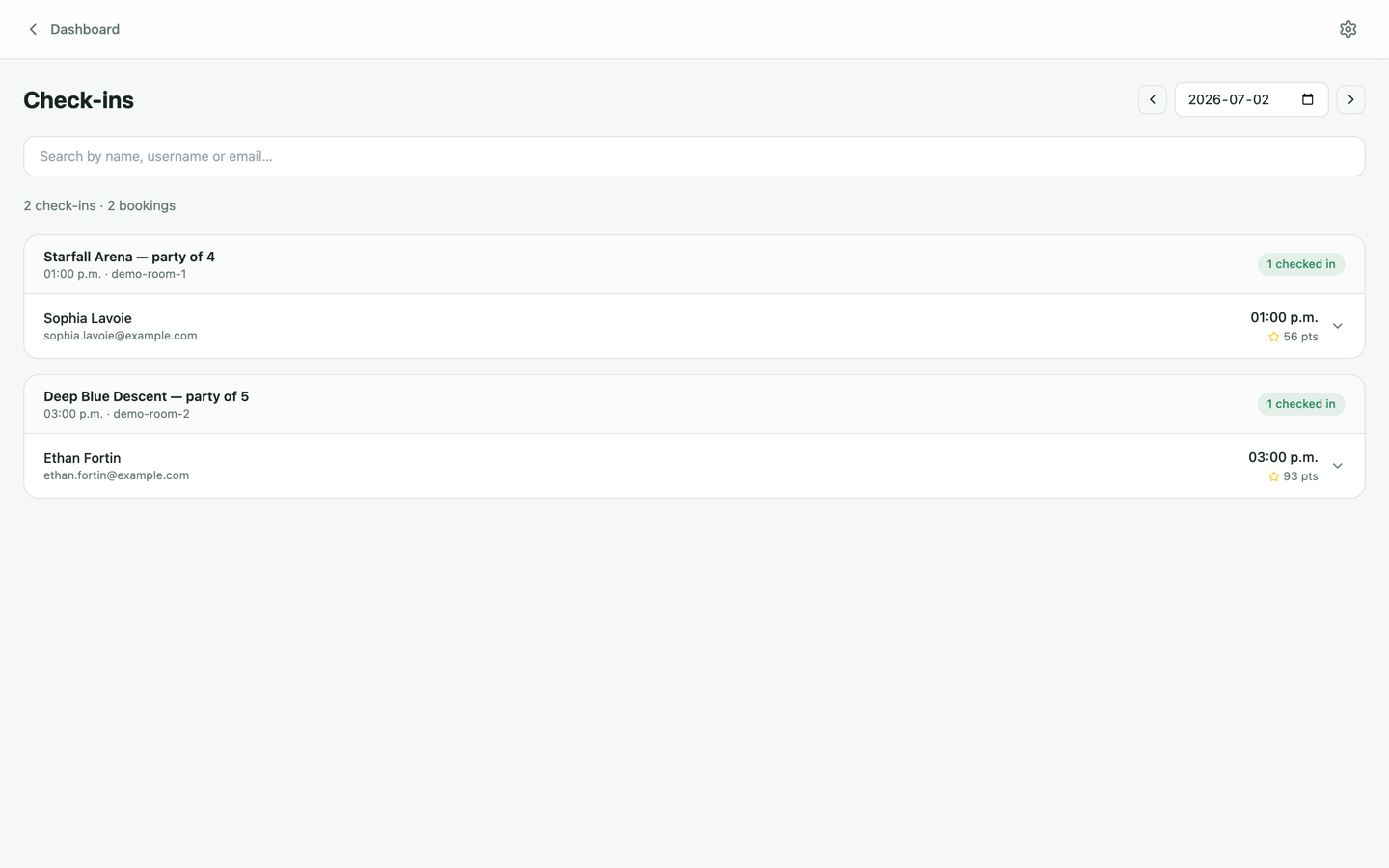
Guests walk up to a tablet at your front desk, find their booking (or check in as a walk-in), confirm who's in the group and sign the waiver on screen. Returning guests with a waiver on file skip straight through — no re-signing — and duplicate check-ins are impossible by design. Staff watch it all land in real time on the dashboard's Check-ins page.
1. Pair a kiosk tablet
Any tablet with a browser works — iPad, Android or a cheap fire-sale special.
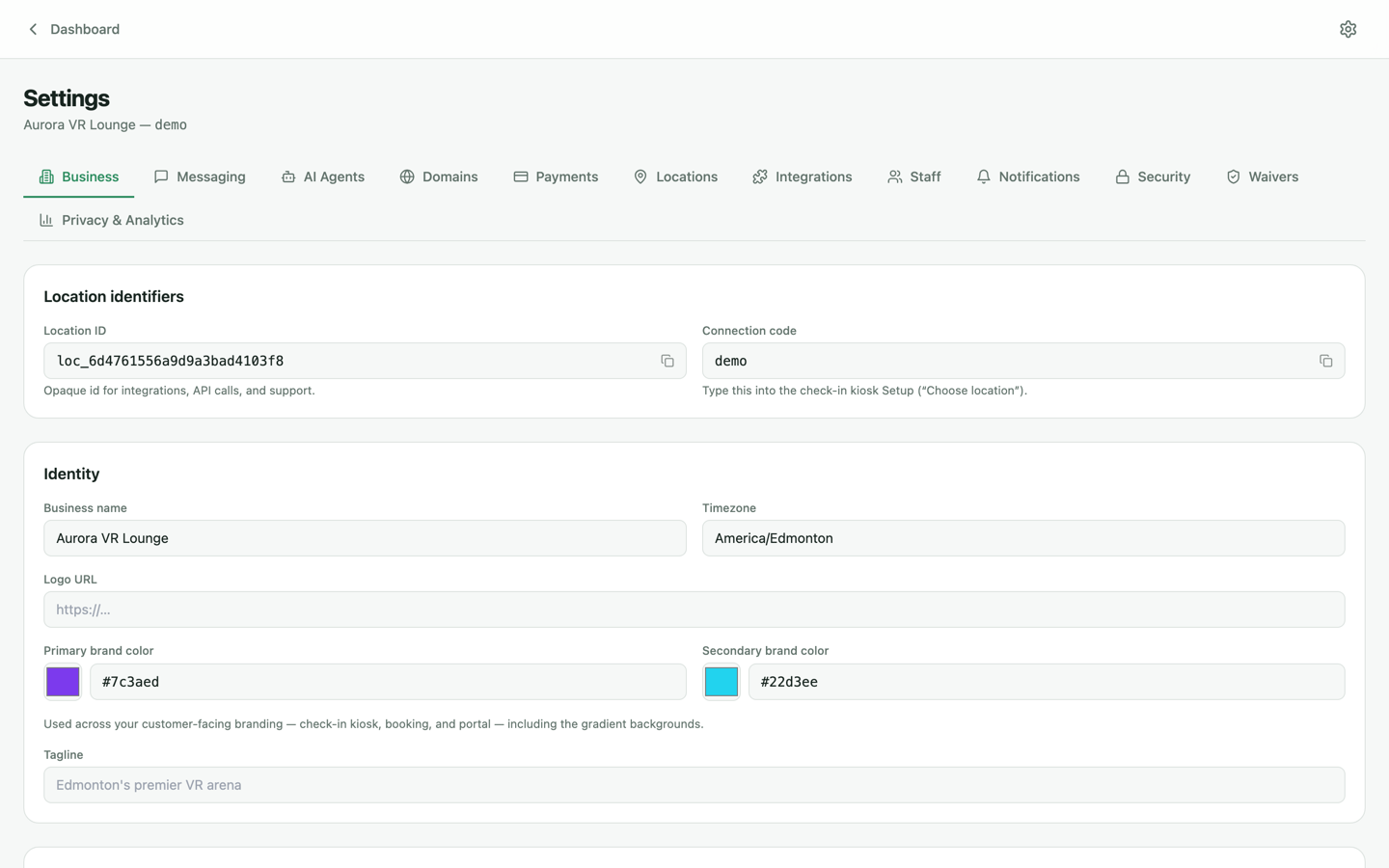
- Find your connection code in Settings → Business → Location identifiers. It's a short word, not a password — for example
aurora-vr. - Open the check-in app on the tablet and choose Setup.
- Type the connection code under "Choose location". The kiosk pulls your branding — logo, colors, tagline — and locks itself to your venue.
- Add the page to the tablet's home screen and enable guided access / kiosk mode so guests stay in the app.
2. Set up your waiver
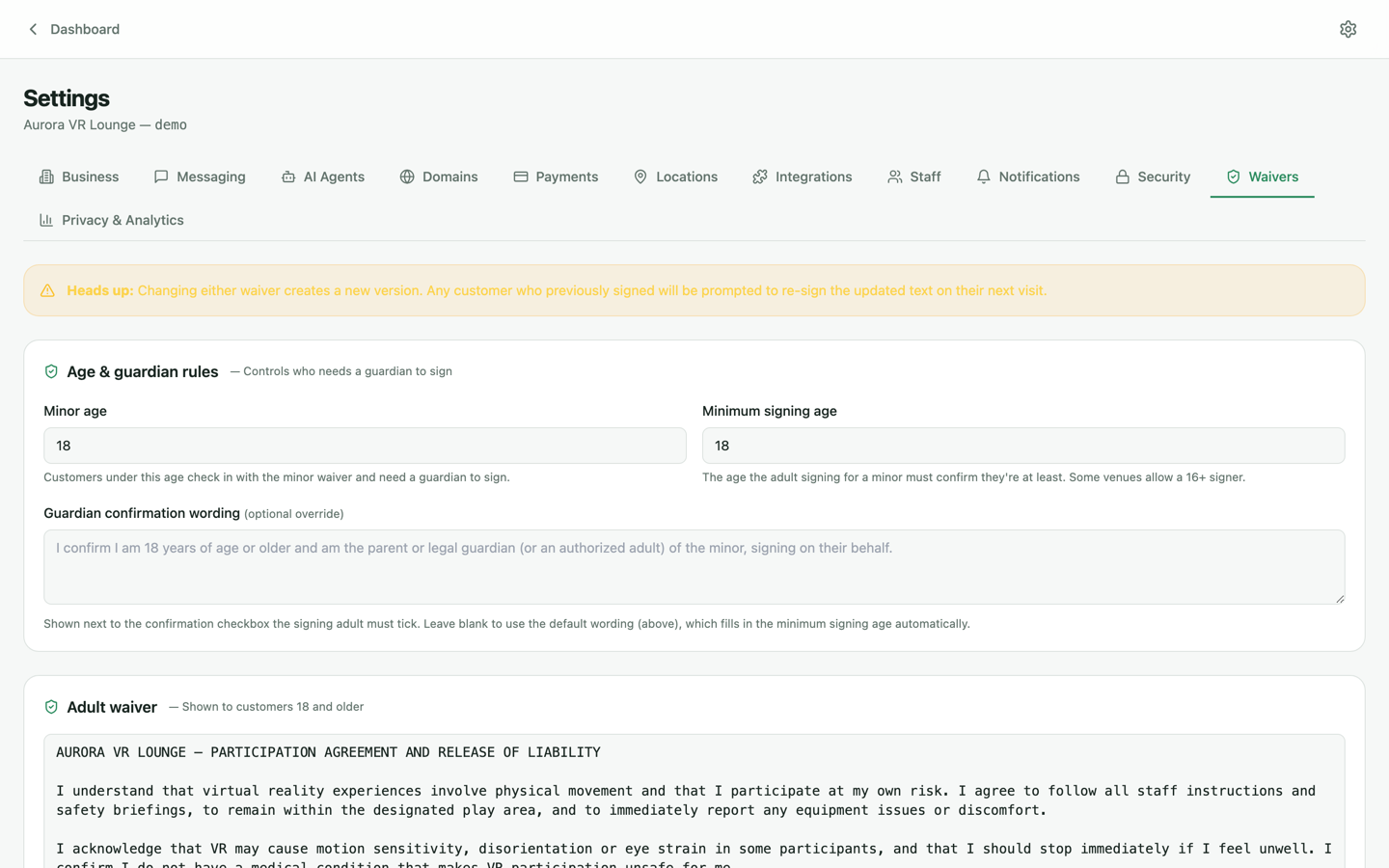
Under Settings → Waivers you control the legal text guests sign. Write your own or start from the built-in template, and set how long signed waivers stay valid. Signed waivers are stored against the customer record — staff can pull any waiver up from the customer profile or the Check-ins page, with a full signature timestamp.
Adult vs. minor flows
The kiosk asks for date of birth and routes automatically:
- Adults sign for themselves in the standard flow.
- Minors are routed to a separate flow where a parent or guardian signs on their behalf — the guardian's identity is captured alongside the minor's.
Both signatures land on the same customer record, so a family that visited once checks in near-instantly the next time.
Walk-ins
No booking? No problem. Walk-ins check in from the same kiosk: they enter their details, sign the waiver and appear on the dashboard immediately — creating a customer record you can market to later.